Stop scrolling through
long PDFs.

Most PDFs print a table of contents but don't make it clickable. So you scroll, overshoot, and scroll back to find a section. The longer the document, the more time you waste.

What you can do

PDF TOC Linker makes it easy to navigate PDFs. The extension reads a PDF's table of contents, figures out where each entry lives in the document, and turns every row into a working link. Open a PDF and it'll load in a clean built-in viewer where the contents page is fully clickable, so you can verify links are correct before exporting.

Step by step

How it works

1

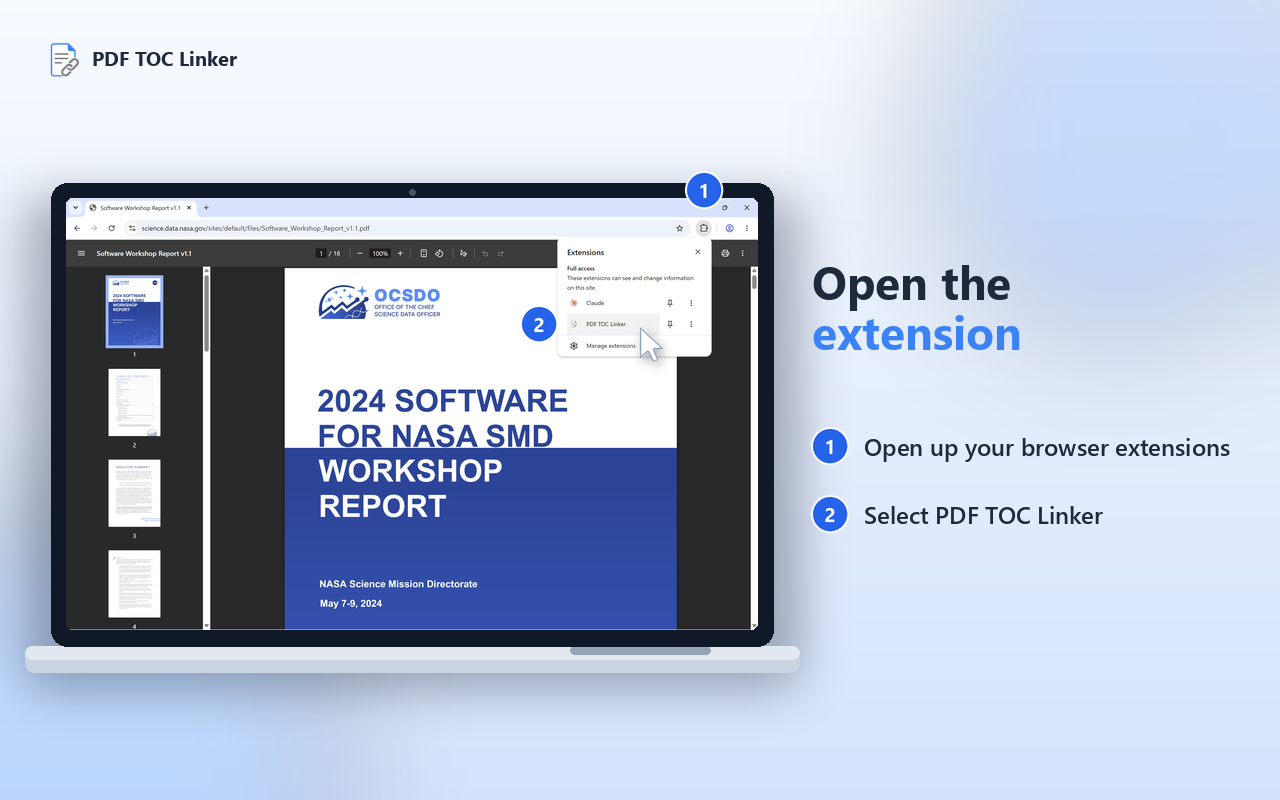
Open a PDF in Chrome

Turn on the extension, and TOC Linker will find the table of contents, match each entry to the right section, and create the links.

2

Review the linked file

See how many entries were linked, then preview the new navigation before exporting.

3

Export & share

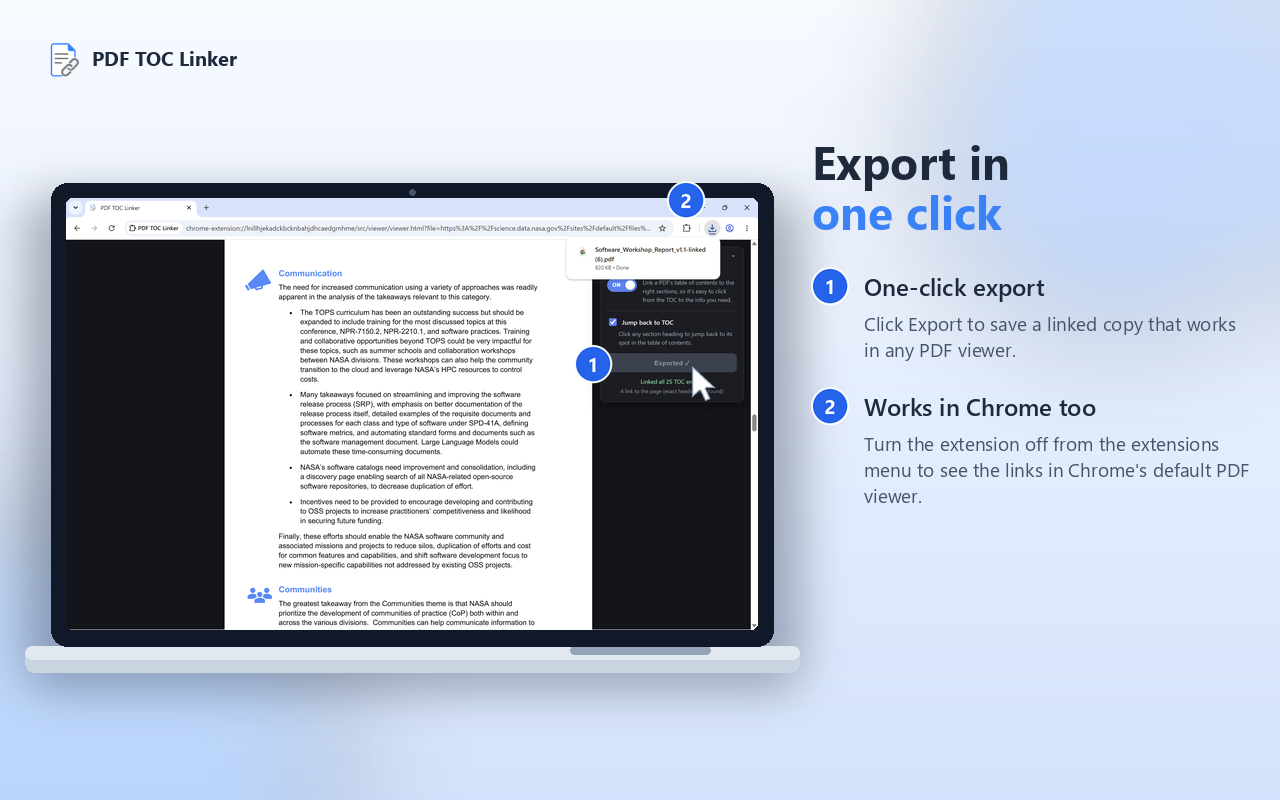
Click Export to download your linked PDF. Then turn off TOC Linker to preview it the way others will see it.
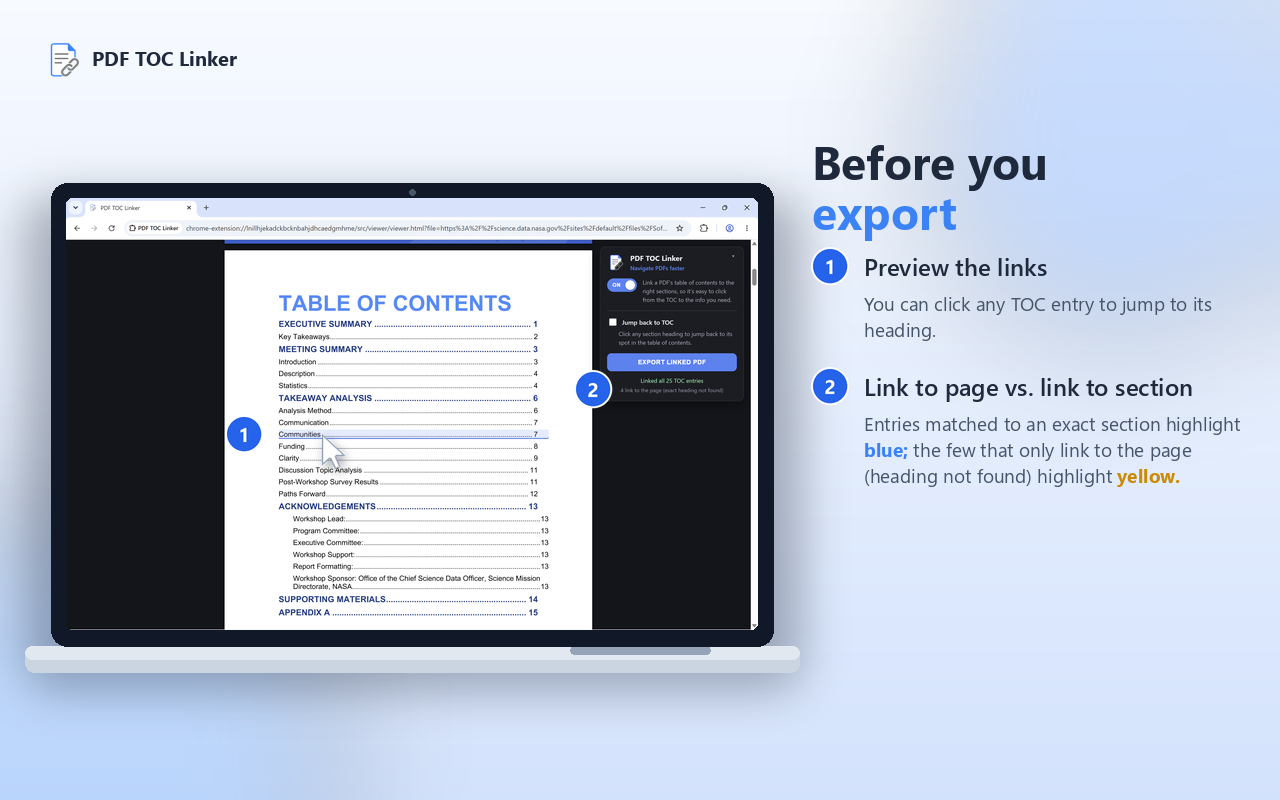
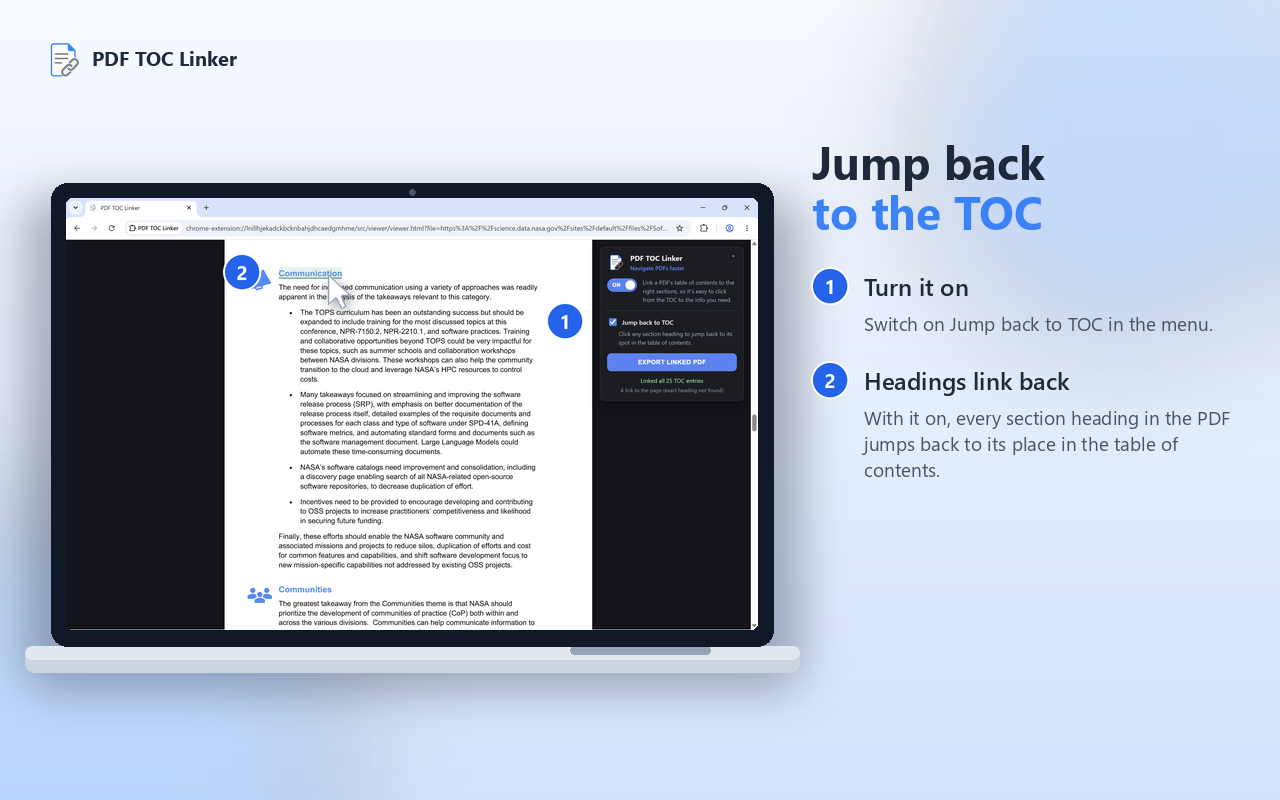
Optional: Turn on “Jump back to TOC” to let readers click section headings in the PDF and return to that spot in the table of contents. Once shared, anyone can move through large PDFs with a simple click instead of endless scrolling.

Local files & privacy

Works on files saved to your device

To open PDFs saved on your device, you'll need to enable access to file URLs on the extension's details page. That access only lets PDF TOC Linker open the file you choose.

Your PDF is processed locally in your browser and is not uploaded anywhere. PDF TOC Linker does not collect, store, sell, or track your data. There is no account, analytics, or tracking.

View Privacy Statement
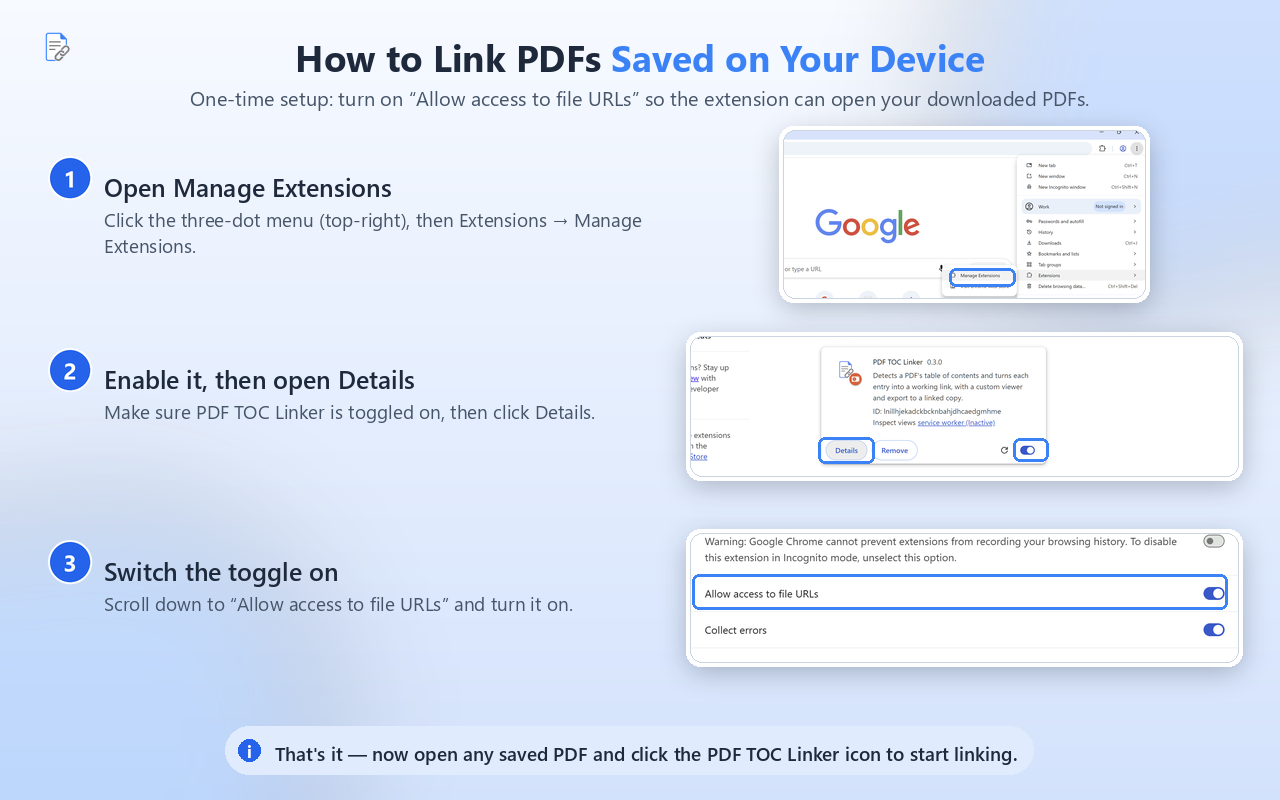
How to enable Allow access to file URLs for PDF TOC Linker

FAQ

Frequently asked questions

General / using the extension

Why does the PDF open in a different viewer?
PDF TOC Linker uses its own built-in viewer so it can detect the table of contents, create links, show review highlights, and let you export a linked copy.
Can I use this on PDFs saved on my computer?
Yes, but Chrome requires one extra setting. To open local PDF files, enable Allow access to file URLs on the extension's details page.
Does this change my original PDF?
No. PDF TOC Linker does not overwrite your original file. It creates a new exported copy with the clickable table of contents and bookmarks outline added.
Will the exported PDF work outside Chrome?
Yes. Once exported, the linked PDF works in standard PDF readers, including Acrobat, Preview, and most browser PDF viewers.
Does PDF TOC Linker upload my PDF anywhere?
No. The PDF is processed locally in your browser. PDF TOC Linker does not collect, store, transmit, or sell your data.

Troubleshooting & limitations

Why does my heading turn blue or yellow when I move my mouse over it?
Blue means PDF TOC Linker found an exact word-for-word heading match, so the link goes directly to that section. Yellow means it could not find an exact match, so the link uses the page number instead. These highlights only appear in the extension's viewer. They will not appear in your exported PDF outside of the extension's viewer.
Why did some entries link by page number instead of heading?
This usually happens when the table of contents entry and the PDF heading use different wording. For example, the TOC might say “Project Timeline,” but the heading might say “Timeline for the Project.” When there isn't an exact match, PDF TOC Linker uses the page number instead.
Does this work on scanned PDFs?
Not in this version. The PDF needs a real text layer so the plugin can read the table of contents and match headings.
Why didn't PDF TOC Linker find my table of contents?
The table of contents may be formatted in a way the plugin does not support yet. For example, this version does not support scanned PDFs, contents pages with three or more columns, right-to-left languages, or contents pages with no page numbers.
What happens if PDF TOC Linker cannot safely link the document?
It will show a clear message instead of guessing. The goal is to avoid creating confusing or unreliable links.

Links and navigation

Can it link subheadings too?
Yes. PDF TOC Linker can read main sections and indented subheadings, including some subheadings that do not have their own page number listed.
Can I use it on PDFs that already have some links?
Yes. If a PDF is already partly linked, PDF TOC Linker looks for what is missing and offers to finish the job.
What does “Jump back to TOC” do?
When this option is turned on, you can click a heading in the body of the PDF to jump back to its matching spot in the table of contents.
Can I edit or move the links before exporting?
Not in this version. You can review how entries were linked, but manual link editing is not currently supported.

Privacy

Privacy policy

PDF TOC Linker — Privacy Policy

PDF TOC Linker does not collect, store, transmit, or sell any personal data.

All processing — detecting the table of contents, matching headings, rendering the viewer, and exporting a linked copy — happens entirely on your device, inside your browser. The only network request the extension makes is fetching the PDF you chose to open; that request goes directly to the site hosting the PDF, exactly as a normal browser navigation would.

Your preferences (whether linking is on, and the “Jump back to TOC” setting) are stored only in your browser's local storage (chrome.storage.local) and never leave your device.

The extension contains no analytics, no tracking, no remote code, and no third-party services.

Last updated: June 14, 2026

Ready to make your PDFs clickable?

Add PDF TOC Linker to Chrome and turn any table of contents into working links.